

The Blueprint Toolbar
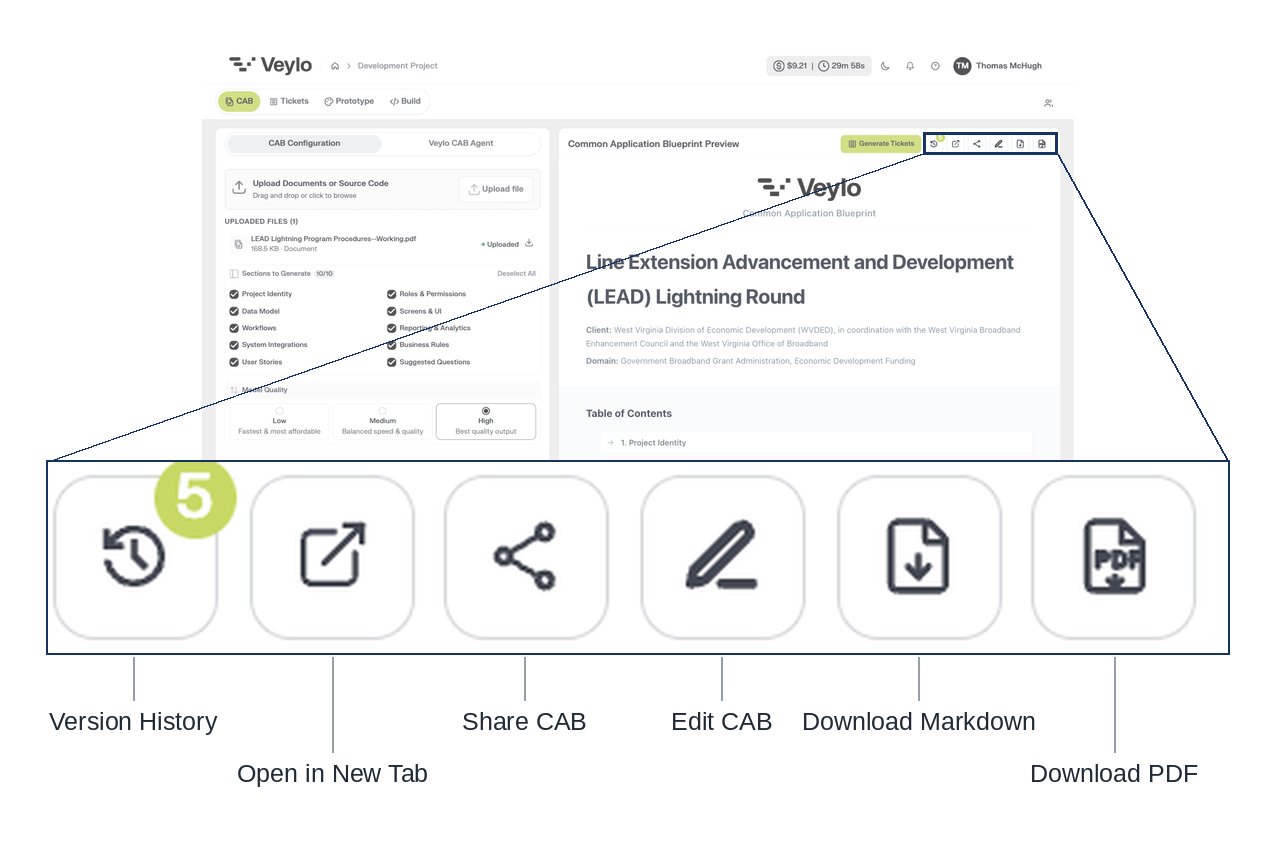
The toolbar above the blueprint preview, with every button named.
Version History appears only once the blueprint has more than one saved versions, so a freshly generated blueprint shows no version history.
Sharing a Blueprint Outside the Platform
Share CAB gives a blueprint to people who do not have a Veylo account. A stakeholder, a client, or a colleague on the business side can read the whole document from a link, without signing up and without being added to the project. This is what makes a blueprint usable as a review artifact. A specification is only worth generating if the people who need to agree with it can read it, and most of them are not platform users. Note that this is a different mechanism from inviting someone to the project. An invitation gives a person a role and a sign-in; a share link gives one document to anyone who has the URL. See Collaboration Features.Editing It Yourself
Edit CAB turns the blueprint into a form. After a few seconds the panel title gains an Editing pill and the toolbar becomes Review with AI, Save Changes, and a close control.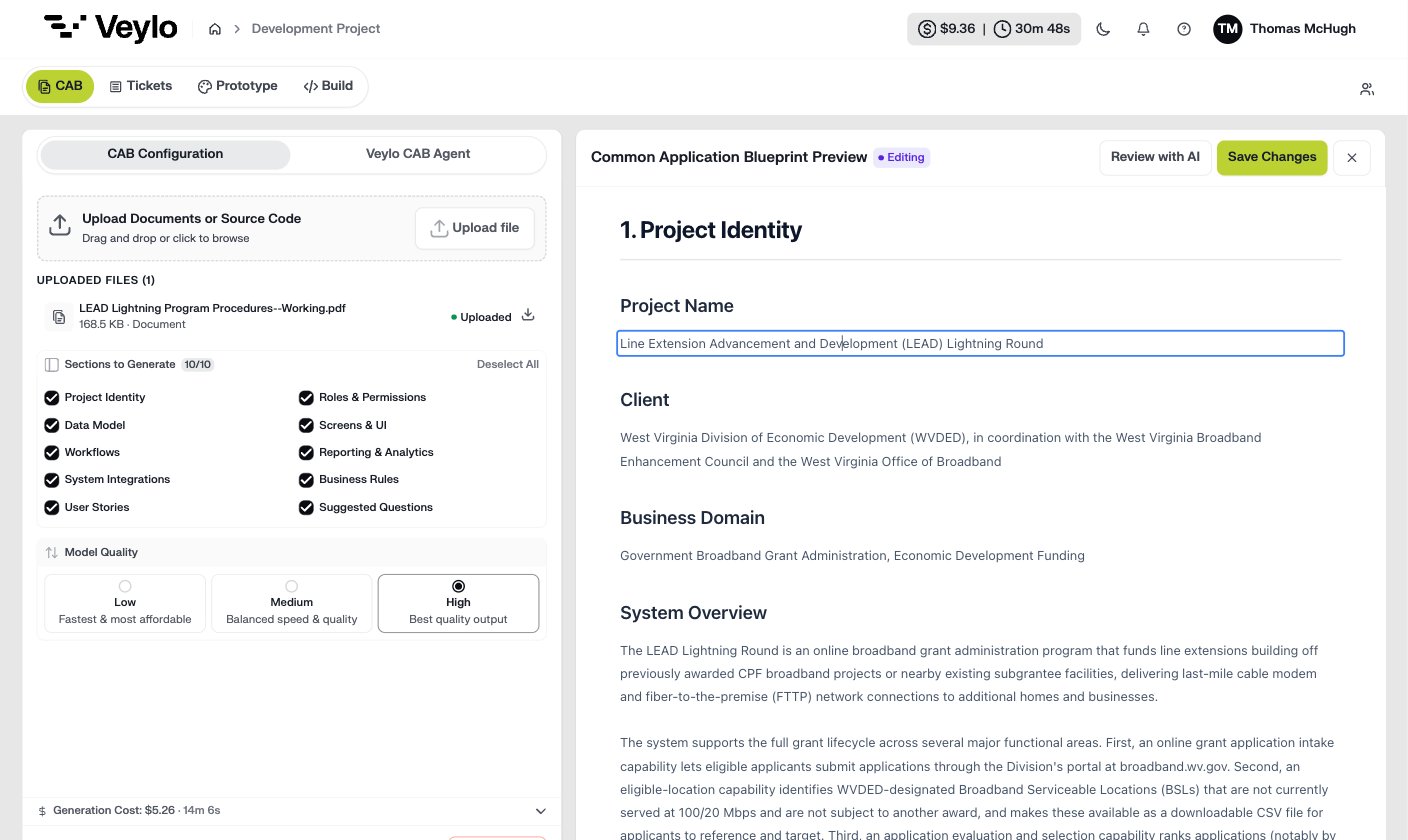
In edit mode, individual values become editable in place. There is no formatting toolbar because there is no formatting.
+ Add acceptance criteria, + Add field, + Add role. Hovering an item offers controls to insert a sibling or remove it.

A removed item stays visible, struck through, until you save.
One Edit, Start to Finish
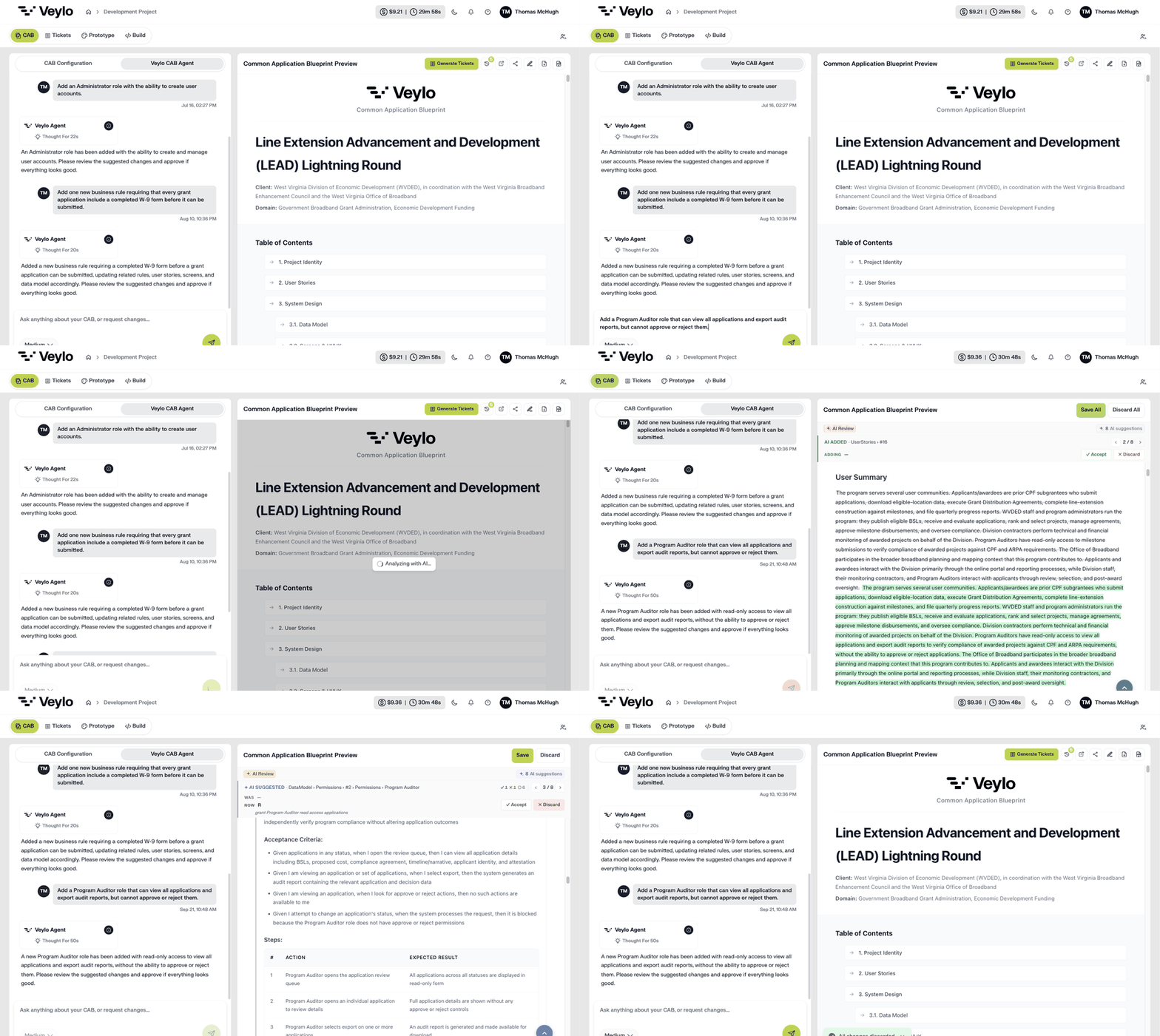
Adding a role, reviewing it, and saving. The single manual edit produces one 'your edit' change and fourteen AI suggestions, and saving takes the blueprint to version 5.
Asking the Agent Instead
The Veylo CAB Agent tab beside CAB Configuration takes requests in plain language. Its composer readsAsk anything about your CAB, or request changes....
The agent tab opens completely blank: no heading, no examples, nothing describing what it can do. It works, but the product does not tell you what to ask it.
One request can change several sections. A single rule request produced six changes across user stories, the data model, three screens, and the rules section; the agent works out what else the change implies rather than editing only what you named.
Reviewing Changes
Both routes land here. Hand edits go through it when you select Review with AI; agent changes go through it automatically. The review looks at your edits, not only at its own suggestions. It reads what you changed, checks it against the rest of the blueprint, and can propose corrections to your wording or to anything your change has knock-on effects for. Running it is a second opinion on your work as much as a way of getting the agent to do some.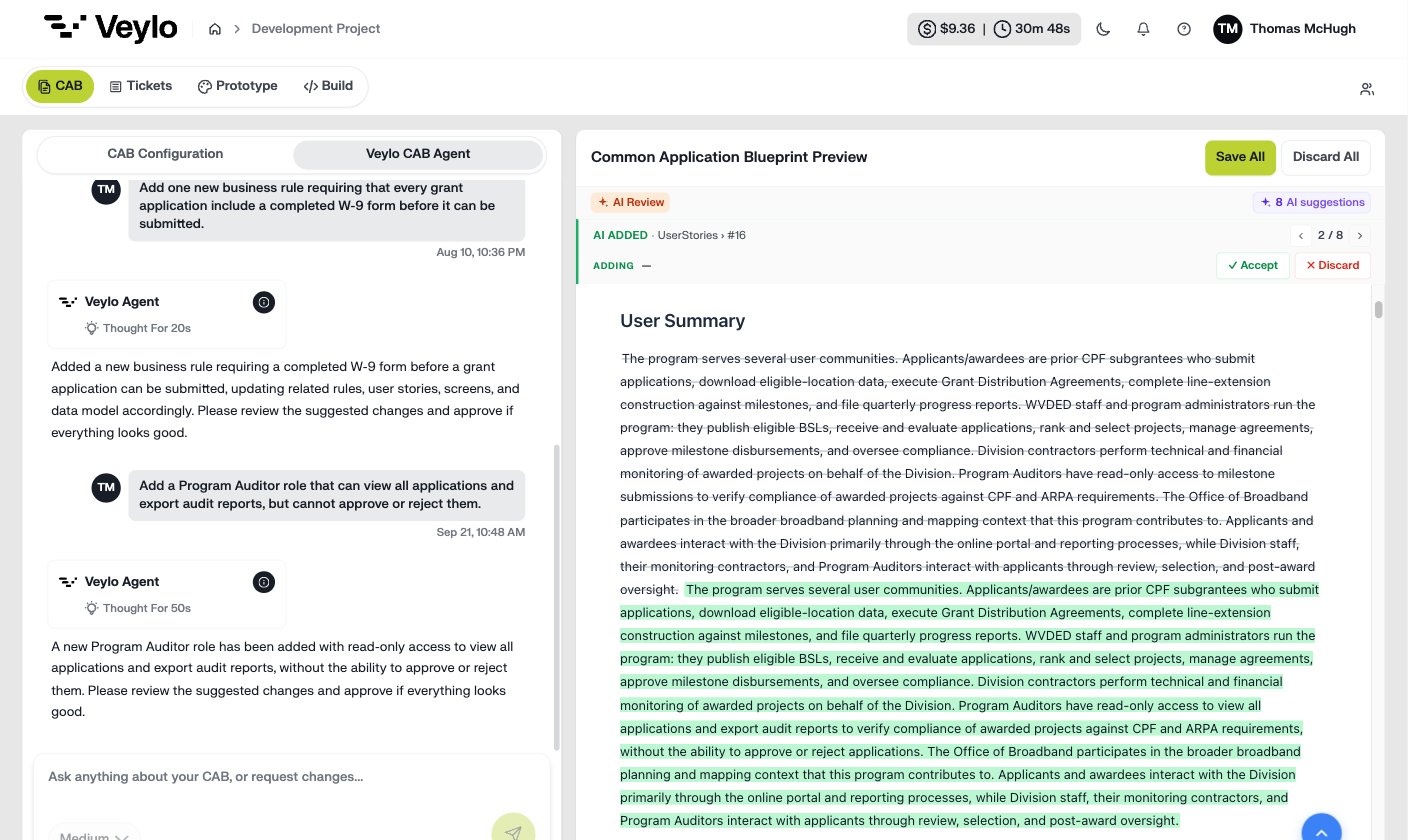
The review screen, part by part. It shows one change at a time.
Modifications show a WAS row and a NOW row; additions show what is being added. Agent changes carry a one-line reason, your own do not. Selecting a change scrolls the blueprint to it and outlines it, so you see it in context.
Reviewing with AI is optional and it costs. You can save hand edits without it, though you then lose the consistency check. When you do run it, the cost is added to the project’s generation cost.
Deciding What to Keep
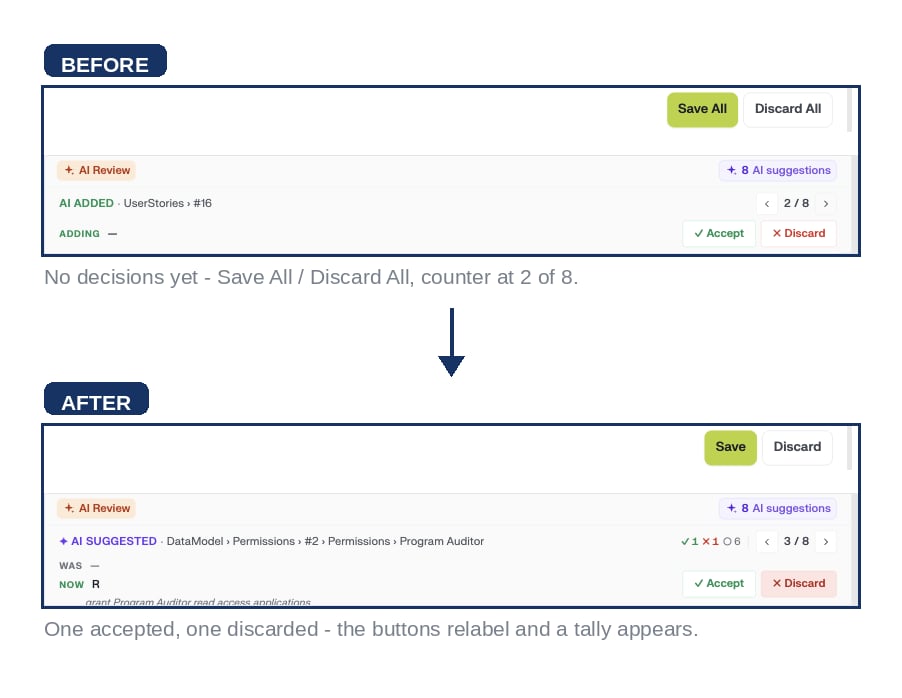
The same review, before and after two decisions. Deciding anything relabels the buttons and starts a tally.
Version History
Saving creates a version. Open the clock button to see them. Each entry is a timestamp: no author, no description, no summary. The current version sits at the top, and selecting an older one previews it without restoring.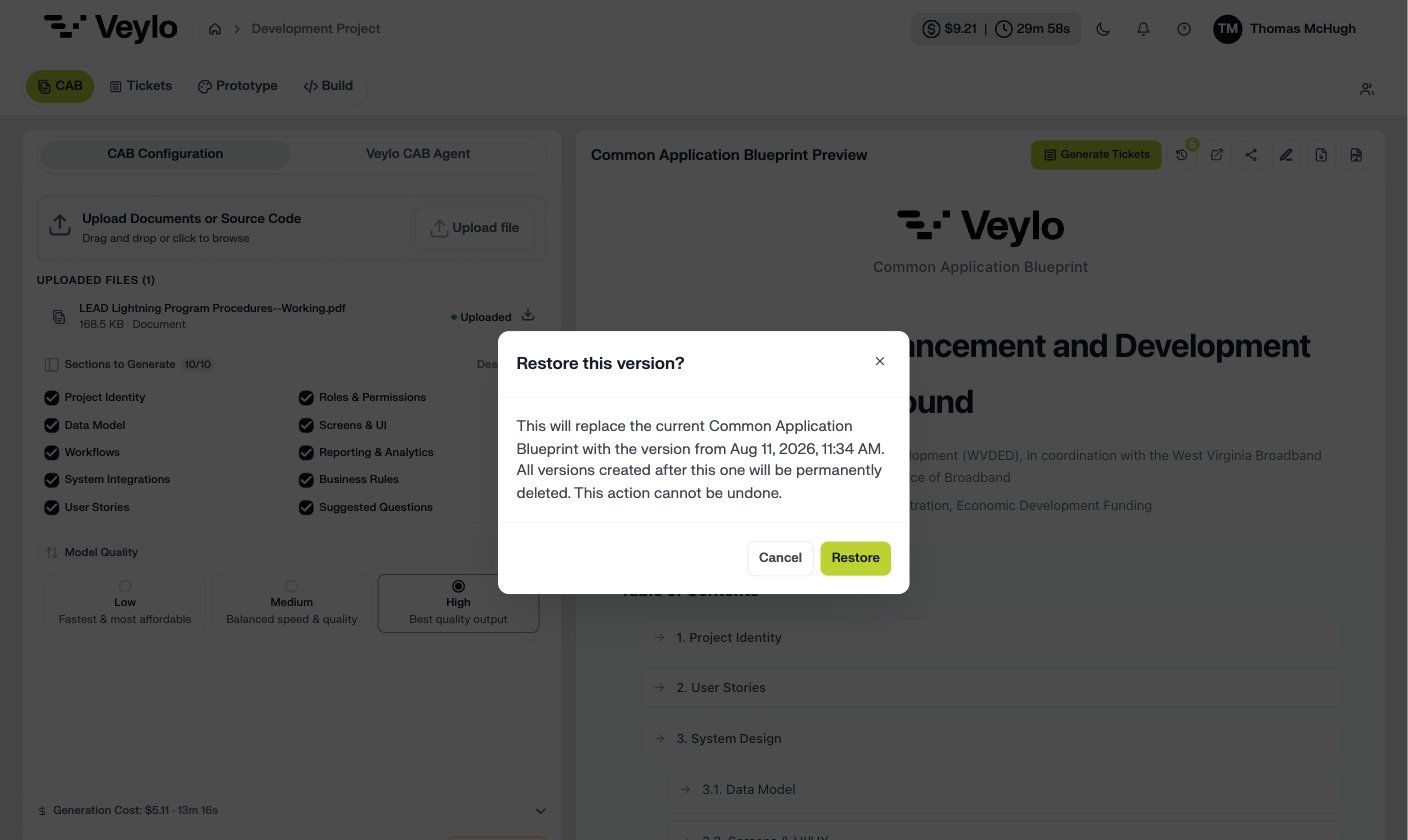
The restore confirmation. The second sentence is the one that matters.
What Is Recorded, and What Is Not
This distinction matters if anyone ever asks you who changed what. While a change is under review, attribution is complete. Every proposed change is marked as yours or the agent’s. Each accept or reject is recorded against a named person with their email address and the time they decided. The agent’s suggestions move through a tracked lifecycle from queued to resolved. Once a change is applied, none of that travels with the blueprint. The document has no edited marker, no record of who edited it, and no per-section history. Reading a finished blueprint tells you what it says, not which parts a person rewrote. Version history records when, not who; versions are named by timestamp, and the save operation is not given a user identity. So the review process is auditable; the finished document is not self-describing. If your organisation needs a change record, capture it during review rather than expecting to reconstruct it afterwards.Working with Other People
Only one person can edit a blueprint at a time. The platform holds a lock while a review is running or awaiting a decision, and checks that the version you started from is still current before applying anything.Your Next Step
A corrected blueprint is what everything downstream is built from.Turn your blueprint into Tickets
What the conversion produces, and what happens when you run it twice.
Check what each section should contain
What the ten sections tell you about your application.